Wordpress

Install Plugin on Wordpress

Understanding WordPress Plugins: Enhance Your Website’s Functionality with Ease

WordPress WordPress is a popular website builder that powers millions of websites worldwide. One of the reasons for its popularity is its vast library of plugins. Plugins are like apps for your website, they add new features, improve performance, and customize the look and feel of your website. In simple terms, think of plugins as Lego blocks that you can use to build your website exactly the way you want it. You can install plugins with just a few clicks. Once installed, plugins can be customized to meet your specific needs. For example, if you want to add a contact form to your website, there’s a plugin for that. If you want to add a shopping cart for e-commerce, there’s a plugin for that too. There are plugins for almost everything you can think of, from adding custom fonts to creating custom page layouts. Plugins can also be used to improve website performance. Slow websites are not only frustrating for users, but they also affect your website’s search engine rankings. There are plugins available that can optimize images, cache content, and minify code to speed up website load times. The faster your website, the better the user experience, and the more likely people are to stay on your site. Customizing the look and feel of your website is important for branding and making your website stand out. With WordPress plugins, you can customize the design of your website without needing to know any coding. There are plugins available that allow you to change the color scheme, add custom fonts, and create custom page layouts. This allows you to make your website reflect your brand and stand out from the crowd. Website security is essential for protecting user data and preventing hacking attempts. With WordPress plugins, you can add an extra layer of security to your website. There are plugins available that can protect against brute force attacks, scan for malware, and add two-factor authentication to your website. These plugins are an important aspect of any WordPress website. While there are many benefits to using WordPress plugins, it’s important to remember that not all plugins are created equal. Some plugins may be poorly coded, which can slow down your website or cause compatibility issues with other plugins. It’s important to research plugins before installing them and only use reputable plugins with good reviews and a large user base. Another thing to keep in mind is that plugins can sometimes conflict with each other. This can cause website errors or unexpected behavior. It’s important to test plugins before installing them on a live website and to only use plugins that are compatible with each other. In conclusion, We can say WordPress plugins are an essential aspect of any WordPress website. They add new features, improve performance, and allow you to customize your website to your specific needs. With careful research and testing, you can find the right plugins to create a powerful and customized website. step by step process to install plugin Here’s a step-by-step guide on how to install a WordPress plugin: Login to your WordPress website using your admin credentials. From the dashboard, navigate to the “Plugins” menu and select “Add New”. You will be directed to the “Add Plugins” page, which will display a list of popular and recommended plugins. You can browse through the list to find the plugin you want to install, or you can use the search bar to look for a specific plugin. Once you have found the plugin you want to install, click on the “Install Now” button located next to the plugin name. WordPress will automatically download and install the plugin on your website. You will then be prompted to activate the plugin. Click on the “Activate” button to activate the plugin. You may be redirected to a new page confirming that the plugin has been activated. Once the plugin is installed and activated, you can access its settings and customize it to meet your specific needs. That’s it! You have successfully installed a WordPress plugin. Remember to only install reputable plugins with good reviews and a large user base, and always test new plugins before installing them on a live website. Plugins are available in both free and paid versions. Here are the main differences between free and paid plugins: Free Plugins: Paid Plugins: It’s important to note that not all paid plugins are better than free plugins, and vice versa. The quality and usefulness of a plugin depend on several factors, including the developer’s reputation, user reviews, and the specific needs of your website. When selecting a plugin, consider your budget, the features you require, and the level of support you need to make an informed decision. Final thoughts: In conclusion, We can say WordPress plugins are an essential aspect of any WordPress website. They add new features, improve performance, and allow you to customize your website to your specific needs. With careful research and testing, you can find the right plugins to create a powerful and customized website. I truly hope that you would like this article. I would keenly wait for your views. Please feel free to share your inputs / feedback / queries, if any. Also I am full time and passionate CMS developer. Do contact me on info@saplingitcare.in to discuss, consult or hire my services. If you want me to discuss details on particular topic(s), please share topic name(s) of your choice. I shall be happy to help you.

Understanding WordPress Plugins: Enhance Your Website’s Functionality with Ease Read More »
Select WordPress Theme

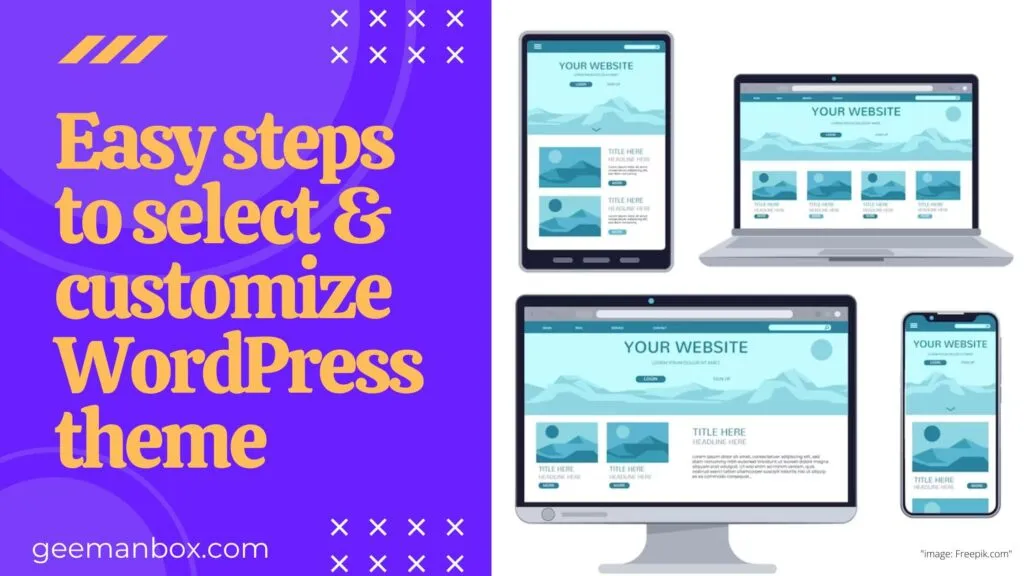
3 easy steps to select & customize WordPress theme for your website

To select WordPress theme is the key to attract visitors to your site. Today, I will explain selection & customization of theme for your website in 3 simple steps. A theme is a collection of files that controls the appearance and layout of a website, including elements such as colors, fonts, and images. It defines the way your site is displayed to visitors and how it interacts with them. Choosing the right theme is important as it can impact user experience and help with search engine optimization (SEO). To use a theme, you first need to find one that suits your needs. There are many free and premium themes available online, and you can also create your own custom theme if you have the necessary skills. If you are looking for free WordPress themes, there are several websites that offer a wide range of themes for download. One such website is aThemes, which offers a collection of free WordPress themes that you can download and use on your website. Another source is official website of WordPress platform. It has a directory of free WordPress themes that you can browse and download directly from your WordPress dashboard. If you are looking for paid themes for WordPress, there are many options available. One way to find them is to visit the WordPress.com, Theme Showcase, where you can browse through a variety of premium themes available for purchase. Another option is to visit tech websites like TechRadar, which provide lists of the best-selling WordPress themes. Websites like Astra also offer premium WordPress themes with a dedicated team of experts. Additionally, many WordPress theme providers offer premium themes on their own websites, and you can also find them on marketplaces like ThemeForest and Creative Market. Before purchasing any premium WordPress theme, it is important to read reviews, check ratings, and ensure that the theme is compatible with your version of WordPress. A. To select WordPress theme: When choosing a theme, there are several factors to consider in order to ensure that the theme is the best fit for your website. By following these guidelines, you can make an informed decision and choose the perfect WordPress theme for your website. B. To install WordPress theme: Once you have chosen a theme, you can install it on your WordPress site by navigating to the “Appearance” tab and selecting “Themes”. From there, you can choose to install a new theme or upload one that you have downloaded. How to install WordPress? Once you have installed your theme, you can begin customizing it to match your brand and content. This may involve changing colors, fonts, and other visual elements, as well as adding custom widgets and plugins to extend its functionality. It’s important to note, however, that any functionality you add to your theme should not be critical, as this can cause issues if a user decides to switch themes in the future C. To customize WordPress theme: Customizing the theme is an essential step in creating a unique and personalized website. Here are some tips on how to customize a theme: The WordPress Customizer is the easiest and most user-friendly way to customize a WordPress theme. You can access it by clicking on the Customize link in the admin bar at the top of the screen or by navigating to Appearance > Customize in the admin screens. From there, you can make changes to your theme’s colors, fonts, and other design elements in real-time. If you want to make more extensive changes to your theme, you can create custom templates and files. Two types files, style.css and index.php, are available in a functioning WordPress theme. This is possible because of WordPress’s template hierarchy. If your theme supports the full site editor, you can use it to customize your website. To access the full site editor, navigate to the Editor menu under Appearance in the WordPress admin sidebar. The full site editor is just like the block editor you use to write WordPress posts and pages. Overall, customizing a WordPress theme requires some technical knowledge but can be accomplished using these methods. It’s important to remember to make changes carefully and to always have a backup of your website in case something goes wrong. It’s important to choose a theme that is compatible with your content goals. It should have the features which you need to create and optimize high-quality content for your website. The approach as well as steps discussed above, will immensely help you selecting a WordPress theme wisely and also in customization of the theme. I truly hope that you would like this article. I would keenly wait for your views. Please feel free to share your inputs / feedback / queries, if any. Also I am full time and passionate CMS developer. Do contact me on info@saplingitcare.in to discuss, consult or hire my services. If you want me to discuss details on particular topic(s), please share topic name(s) of your choice. I shall be happy to help you.

3 easy steps to select & customize WordPress theme for your website Read More »

Install Wordpress on localhost

Easily Install WordPress Locally with These Steps

To install WordPress on your localhost, you can follow these steps: Download and install a local development environment like XAMPP or WAMP or MAMP on your computer. To install XAMPP : you can follow these steps: Visit the official XAMPP website at https://www.apachefriends.org/ and download the version of XAMPP that is compatible with your operating system (Windows, Linux, or macOS). Once the download is complete, run the XAMPP installer file and follow the prompts to install XAMPP on your computer. You may be prompted to choose which components to install, such as Apache, MySQL, PHP, and phpMyAdmin. During the installation process, you may also be prompted to select a folder where XAMPP should be installed. You can choose the default location or select a different folder. Once the installation is complete, launch XAMPP by opening the XAMPP control panel. You can find this in the folder where XAMPP was installed, or you may be prompted to launch it automatically after the installation is complete. In the XAMPP control panel, start the Apache and MySQL services by clicking the “Start” button next to each service. You can now access the XAMPP dashboard by navigating to http://localhost in your web browser. From here, you can access and manage the various components of XAMPP, such as phpMyAdmin for managing your databases. That’s it! XAMPP is now installed and running on your computer, and you can use it to develop and test web applications locally. To install WAMP : you can follow these steps: Visit the official WampServer website at https://www.wampserver.com/en/ and download the latest version of WampServer that is compatible with your operating system (Windows). Once the download is complete, run the WampServer installer file and follow the prompts to install WampServer on your computer. You may be prompted to select a language and agree to the terms and conditions. During the installation process, you may also be prompted to select a folder where WampServer should be installed. You can choose the default location or select a different folder. Once the installation is complete, launch WampServer by double-clicking the WampServer icon on your desktop or by navigating to the WampServer folder and launching the WampServer.exe file. In the WampServer icon menu, select “Start All Services” to start the Apache and MySQL services. You can now access the WampServer dashboard by navigating to http://localhost in your web browser. From here, you can access and manage the various components of WampServer, such as phpMyAdmin for managing your databases. That’s it! WampServer is now installed and running on your computer, and you can use it to develop and test web applications locally. To install MAMP : you can follow these steps: Visit the official MAMP website at https://www.mamp.info/en/downloads/ and download the version of MAMP that is compatible with your operating system (macOS). Once the download is complete, open the MAMP disk image file and drag the MAMP folder to your Applications folder. Double-click the MAMP application to launch it. You may be prompted to enter your administrator password. In the MAMP application, click “Start Servers” to start the Apache and MySQL services. You can now access the MAMP dashboard by navigating to http://localhost:8888/MAMP/ in your web browser. From here, you can access and manage the various components of MAMP, such as phpMyAdmin for managing your databases. To create a new project, create a new folder in the htdocs folder inside the MAMP folder. Then, create a new PHP file inside that folder and add your PHP code to it. That’s it! MAMP is now installed and running on your computer, and you can use it to develop and test web applications locally. Create a new database for your WordPress installation using phpMyAdmin or any other database management tool. Download the latest version of WordPress from the official website and extract the files to the htdocs folder of your local server. Rename the wp-config-sample.php file to wp-config.php and update the database details in this file with your database name, username, and password. Open your web browser and navigate to http://localhost/your_wordpress_folder_name to run the WordPress installation script. Follow the prompts to configure your WordPress site, including setting up an admin username and password. Once the installation is complete, you can log in to the WordPress dashboard by navigating to http://localhost/your_wordpress_folder_name/wp-admin. That’s it! You should now be able to access and manage your WordPress site from your local computer. These methods are the easy methods to install WordPress CMS for your website on Localhost . In next article I will discuss step- by step approach for making a website. I truly hope that you would like this article. I would keenly wait for your views. Please feel free to share your inputs / feedback / queries, if any. Also I am full time and passionate CMS developer. Do contact me on info@saplingitcare.in to discuss, consult or hire my services. If you want me to discuss details on particular topic(s), please share topic name(s) of your choice. I shall be happy to help you.

Easily Install WordPress Locally with These Steps Read More »

Wordpress Installation -2

4 easy methods to install WordPress: Step-by Step guide-2

WordPress installation is increasing with demand for business websites. In my previous article, I has discussed step by step approach for first 2 methods to install WordPress. In this article, I will discuss step-by step approach for final 2 methods of installing WordPress CMS. Here are the detailed approach of these 2 methods: Softaculous is an auto-installer that makes installation of web apps simpler. Softaculous gives variety of scripts to install hosting software on your cPanel server. Some of these software may be among the most popular ones. Here is a step-by-step guide for installing of WordPress using this method: Step 1: Log in to your cPanel account. Step 2: Next, navigate to the “Software” or “Services” section and look for the “Softaculous Apps Installer” icon and click on it. This will take you to a page with a list of available applications. Step 3: On the WordPress installation page, find and click on the “WordPress” icon. Click the “Install” button to start the installation process. Step 4: Fill out the details, including the domain name, installation directory, site name, and administrative username and password. Step 5: Click the “Install” button to complete the installation process. Step 6: Once the installation is complete, you can log in to your WordPress site and start customizing it with themes, plugins, and content. Using cPanel to install WordPress is a convenient option for users who have access to a web hosting service that includes cPanel. It requires minimal technical knowledge and can be completed quickly and easily. Command Line Installation: This method involves using the command line interface (CLI) to download and install WordPress on your web server. This method requires more technical knowledge and is typically used by experienced users who are comfortable using the command line. This method is useful for users who have SSH (Secure Shell) access to their web server and want to quickly and efficiently install WordPress. Here is the step-by-step guide to install WordPress using the command line interface (CLI): Step 1: Log in to your web server using SSH (Secure Shell) access. You can use a command line interface, such as Terminal (Mac) or PuTTY (Windows), to connect to your web server. Step 2: Navigate to the directory where you want to install WordPress. For example, if you want to install WordPress in the root directory of your web server, navigate to the root directory. Step 3: Download the latest version of WordPress using the command line interface. You can use the following command to download the latest version of WordPress: Step 4: Extract the downloaded WordPress file using the following command: Step 5: Create a new database for your WordPress site using the command line interface. For example, if you’re using MySQL, you can use the following commands: Step 6: Rename the “wp-config-sample.php” file to “wp-config.php” and edit the file to add the necessary database information. You can use the following command to rename the file: Step 7: Use the following command to open the wp-config.php file in a text editor: Step 8: Add your database information to the wp-config.php file. You will need to add the database name, database username, database password, and database host information. Step 9: Save and exit the wp-config.php file. Step 10: Copy the contents of the extracted WordPress directory to your web server using the following command: .Step 11: Set the correct file permissions using the following commands: Step 12: Open your web browser and navigate to your WordPress site to complete the installation process. Using the command line interface to install WordPress requires more technical knowledge than other installation methods, but it can be a faster and more efficient option for experienced users. These 4 methods are the easy methods to install WordPress CMS for your website. In next article I will discuss step- by step approach for making a website. I truly hope that you would like this article. I would keenly wait for your views. Please feel free to share your inputs / feedback / queries, if any. Also I am full time and passionate CMS developer. Do contact me on info@saplingitcare.in to discuss, consult or hire my services. If you want me to discuss details on particular topic(s), please share topic name(s) of your choice. I shall be happy to help you.

4 easy methods to install WordPress: Step-by Step guide-2 Read More »

Wordpress Installation -1

4 easy methods to install WordPress: Step-by Step guide-1

In this article, I will explain step by step methods to install WordPress. Before jumping to install, let me briefly introduce WordPress. for the help of beginners, mostly non-coders. WordPress is a open source content management system or CMS. It is based on PHP and MySQL. It was first released in 2003 and since then, it has become the most popular website platform in the world, powering over 40% of all websites on the internet. WordPress is known for its ease of use and versatility, allowing users to create a wide range of websites, from personal blogs to large e-commerce sites, without needing to have any technical expertise. It provides a user-friendly interface for creating and managing website content, as well as a large repository of plugins and themes to extend its functionality and customize the look and feel of a site. Additionally, WordPress is highly customizable and flexible, making it an ideal choice for both novice and advanced users. With its vast community of users, developers, and contributors, WordPress is constantly evolving and improving, offering users the latest in website design and technology. There are several ways to install WordPress, four of the methods are very popularly used. I will discuss all the four methods with their step-by-step process to install. Many web hosting companies offer WordPress installation as part of their bouquet. This is the easiest and quickest way to get started with WordPress. Also it is one-click installation method of WordPress. With this method, you simply sign up for a web hosting account, select WordPress as the platform you want to use, and follow the installation wizard to complete the setup process. e.g. Hostinger, Godaddy etc. If you want to install WordPress manually, you need to download the WordPress software and upload it to your web server using a File Transfer Protocol (FTP) client. Ex – FileZilla. You will also need to create a database for WordPress and configure the settings in the wp-config.php file. Here is a step-by-step guide for manual installation of WordPress: Step 1: Download the WordPress software from the official website. Ensure you download only the latest version. Unzip the downloaded file and extract the contents into a new folder in your computer. Step 2: Connect to your web server using an FTP client and upload the WordPress files to the root directory of your website. Step 3: Create a database for WordPress through your web hosting control panel. Step 4: Open your web browser and access the WordPress installation script by navigating to http://yourdomain.com/wp-admin/install.php. Follow the installation wizard to enter your database information and complete the setup process. Step 5: Configure your WordPress site by choosing a theme, adding plugins, and customizing your settings. It is recommended to use a secure and reliable web hosting service for your WordPress website. This is to ensure maximum security, fast performance and full reliability. This article is first one of 2 articles’ series. In this article, I discussed first 2 installation methods. In next article, I will discuss step-by step approach for other 2 methods of WordPress installation. Stay Tuned ! I truly hope that you would like this article. I would keenly wait for your views. Please feel free to share your inputs / feedback / queries, if any. Also I am full time and passionate CMS developer. Do contact me on info@saplingitcare.in to discuss, consult or hire my services. If you want me to discuss details on particular topic(s), please share topic name(s) of your choice. I shall be happy to help you.

4 easy methods to install WordPress: Step-by Step guide-1 Read More »

CMS

CMS: A powerful tool for Non-Coders

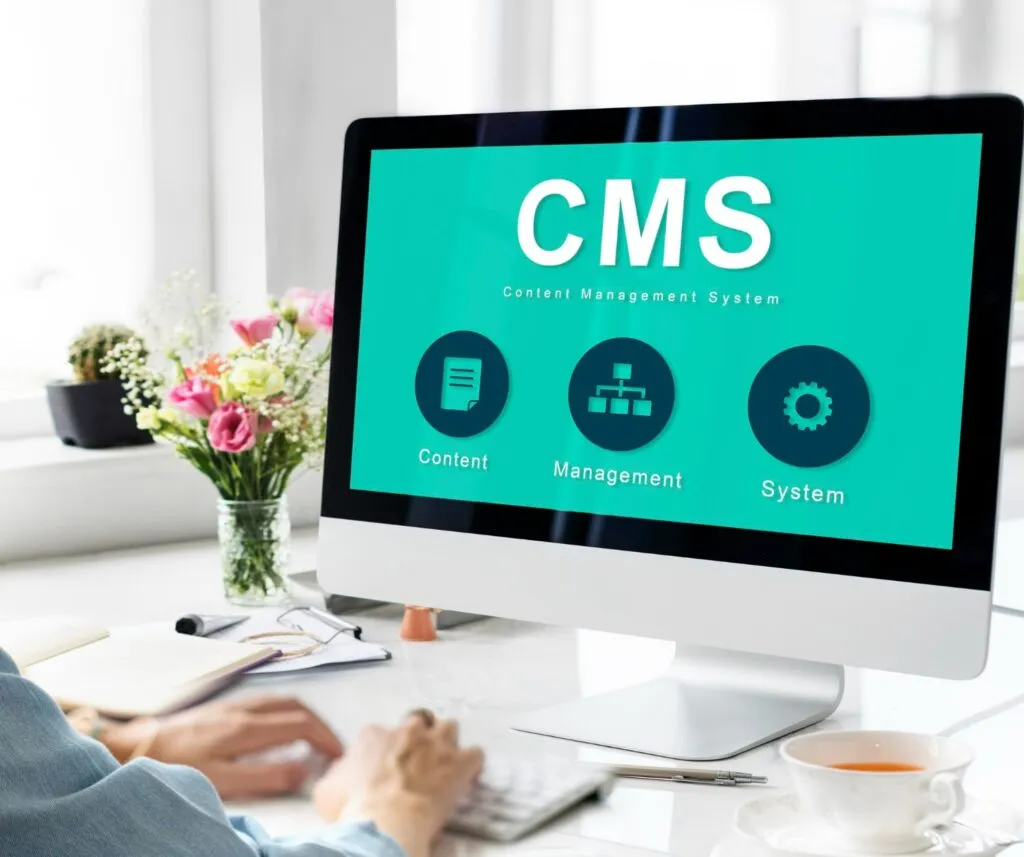
A Content Management System (CMS) is a software platform which is used to manage the creation and modification of digital content, typically for websites. It provides an interface for non-technical users and non-coders to add, edit, and publish content without having to write code. A CMS can streamline the content creation process and improve the overall efficiency and organization of a website. CMS makes it easy for non-coders or non-technical users to create, manage, and publish digital content on a website or other digital channels without any coding or technical skills. A CMS typically includes features such as a user-friendly interface for creating and editing content, a database for storing and organizing content and tools for managing and publishing content. Some CMS also include additional features such as templates and themes for customizing the look and feel of a website, and plugins for extending the functionality of the platform. A CMS helps businesses and organizations to efficiently manage their digital content and streamline their digital marketing and communication efforts. Whether you are creating a small blog or a large enterprise website, a CMS can help you to quickly and easily create, manage, and publish digital content and reach your target audience. Types of CMS There are many types of content management systems (CMS) available, ranging from simple systems for small websites to complex enterprise-level platforms. Some of the most CMS types are: Examples of popularly used CMS Here are some examples of few popular Content Management Systems (CMS) along with a brief description of each: Layoffs Times: 5 steps to smartly overcome CMS features A Content Management System (CMS) typically includes the following features: These are some of the most common features you might expect to find in a CMS. The specific features of a CMS can vary depending on the platform, these are here as under: Additional features of CMS In addition to the common features as I mentioned earlier, there are some additional features that are not common in all the CMS: These are some of the additional features that you might find in a CMS. The specific features will depend on the platform, so it’s important to choose a CMS that has the features you need to build and manage your website effectively. Benefits of using CMS There are several benefits to using a Content Management System (CMS) to build and manage your website: These are just some of the benefits of using a CMS. The specific benefits you’ll experience will depend on the CMS you choose and your specific needs, but by using a CMS, you’ll have a powerful platform for building and managing your website that’s both flexible and easy to use. Final thoughts In conclusion, CMS is a smart tool for non-coders to design smart and responsive websites for modern projects. In this article, I have tried to brief all basics of CMS like its types, features, additional features and also its benefits. In next article of CMS series, I shall discuss how to choose the right CMS platform for your project in hand. Till then, stay tuned! I truly hope that you would like this blog. I would keenly wait for your views. Please feel free to write me on info@saplingitcare.in and share your inputs / feedback / queries, if any. If you want me to cover any particular topic in forthcoming articles, please share topic name of your choice. I shall be happy to help you. Image source

CMS: A powerful tool for Non-Coders Read More »